Pattern Library

Quick Links
The following assets are available in the Pattern Library.
You can also visit the Pattern Library: Layouts page to view Layouts, Pattern Library: Pages documentation to learn about auto-blocking pages (e.g. Article), or the Content Migration Guide for reference on moving content from the old site.
- Page Themes
- Components
- Blockquote
- Button Group
- Callout
- Card
- Constrained Text
- Embed
- Feature Layout [deprecated; replaced by the gradient variant of Responsive Split Layout]
- Filter Group
- Horizontal Rule
- Ideas
- Images and Image with Caption
- Job List
- Job Listing
- Lede
- Link List
- Page Header
- Plaintext
- Recent Ideas
- Responsive Split Layout
- Search
- Section Header
- Small Screen Call to Action
- Boilerplate Components
Page themes
The page metadata block accepts a “theme” property that can determine the gradient or backdrop at the top of a page.
Gradient Themes
The following themes create a simple gradient at the top of a page that blends into the background color. To apply a theme, add the color name to the theme metadata block.
The color at the start of the gradient in these themes has been defined for both light mode and dark mode. The following list also contains links to an example of that theme being used:
If needed, with design approval, additional gradient themes can be added to the adobe.design codebase by modifying the CSS with a new class and the appropriate color(s) custom properties. New colors may need to be added to the codebase.
Page Backdrops
The following themes use multiple layered SVG shapes, positioned at various breakpoints for a unique look:
- backdrop-indigo
- Originally designed for the homepage
- backdrop-green
- Originally designed for “Editorial Packs” and content tag landing pages
- backdrop-seafoam
- Originally designed for “Careers” page
- backdrop-blue-green-wave
- Originally designed for the “Who We Are” page
- backdrop-blue-circles
- Originally designed for the “Ideas” page
Components
These components can be placed on any page as a block.
◼️ Blockquote
In this Blockquote component:
- The first row should contain the quote text.
- The second row is optional and can include an attribution or citation.
- The third row is optional and can include an attribution URL.
Example 1:
Example 2: The following quote example does not have a citation link, and uses a link within the content. Quotes are best as one paragraph but can support multiple paragraphs:
Consistency is one of the most powerful usability principles: when things always behave the same, users don't have to worry about what will happen.
Instead, they know what will happen based on earlier experience.
◼️ Button Group
The button group contains one or more links which are all styled as buttons. On small screens, the buttons will stack vertically and take up the entire width of the screen. On larger screens, the buttons will align horizontally and represent the width of the contained text.
The first column is the label of the button. The text in this column should link to the desired destination.
The second column determines the button style and only accepts certain words as valid. There are six types of button style:
- “primary” - This is also the default button style and will apply if the second column is left blank.
- “primary-outline”
- “accent”
- “static-black” - This button has a black outline regardless of whether the theme is light or dark.
- “static-white” - This button has a white outline regardless of whether the theme is light or dark.
- “ghost”
The third column contains the alternative text (aria-label) for the link, which is recommended when there are several links on the page with the same label. For example, if there is more than one “View jobs” button on a page, one may have “View Experience Design jobs” as alternative text while another may have “View Content Strategy jobs.” Note that this text replaces the button text for screen readers, so it should be complete.
Some layouts as designed place the call-to-action button in a different location on small or large screens. The fourth column is optional and is used for this purpose. Any text in this column will hide the button at large screen sizes, but for clarity, it is recommended to use the text, “Hide at medium screens.”
◼️ Callout
The callout block is meant to visually stand out and can feature a call-to-action and usually features a gradient background. When creating the block table in SharePoint:
- The first row contains the text content of the callout
- The first column contains the title
- The second column should have the description and can be any number of paragraphs
- The second row determines the type of callout that will be rendered on the page
- The first column is optional and can contain a URL (this column needs to be filled with content if using the second and third column)
- The second column is optional and determines the label that will appear on the button
- The third column is optional and describes the link’s alt text
- The fourth column is optional and determines whether the send icon appears within the button. Exclude this column to display a button without an icon. Include this column with any value, such as “yes” to display the paper plane SVG icon, typically used for “Subscribe” links.
- To change the default callout theme, place the theme name in the third row. It is optional. Available callout themes are:
- default
- bright
If no columns in the second row contain content, then the callout will not be interactive.
If only the first column contains content, the entire callout will be clickable and lead to the entered URL.
If the first and second columns contain content, then the callout will feature a button and clicking on it will lead to the entered URL. The callout as a whole is not clickable.
The callout below is not interactive.
Keep in touch with Adobe Design
The callout below is a link that leads to another page.
Keep in touch with Adobe Design
The callout below has a button that leads to another page.
Keep in touch with Adobe Design
This callout is for testing multiple paragraphs of text.
Keep in touch with Adobe Design
Subscribe to our monthly digest for live events, stories, and career opportunities from Adobe Design. Lorem ipsum dolor sit amet, consectetur adipiscing elit, sed do eiusmod tempor incididunt ut labore et dolore magna aliqua.
Lorem ipsum dolor sit amet. Subscribe to our monthly digest for live events, stories, and career opportunities from Adobe Design.
This callout uses the bright theme.
Keep in touch with Adobe Design
◼️ Card
This block is typically used as a decorated link to a story.
- The first row should contain the image that accompanies the story.
- The second row should contain the text content of the card.
- There should always be two paragraphs – the first paragraph will be formatted as the title of the card, and the second will be formatted as the description.
- The third row should contain the link that interacting with the card will lead to.

Should you pursue a career in design engineering?
Perspectives on this emerging discipline that can help you determine whether it’s right for you.
◼️ Constrained-Text
This utility block adds a limited width, based on the amount of characters, to a rich text block. By default, this text is left-aligned inside its parent container.
To use the Constrained-Text block, insert all desired content into the first, singular row of the block. Styles should remain intact.
We’re the multidisciplinary, global organization shaping the strategy, look, feel, and function of 100+ Adobe products.
We keep the people who use our products and services at the center of every design decision, starting with design research that informs Adobe experiences with deep user insights.
We embrace coherence and continuity wherever possible to make the sum of our products greater than the parts. We center that work on Spectrum, Adobe's design system, to connect experiences across our ecosystem.
We drive quality for Adobe tools by maintaining high standards, finessing every detail, and demonstrating that design quality and business success are interconnected.
We prioritize equity and ethics, ensuring our products are accessible to everyone—without compromise—and that artificial intelligence in our products is developed and used responsibly.
We empower design talent by providing transparency around design career pathways and emerging disciplines, creating opportunities for new talent, and supporting career growth for our organization of 800+ team members around the world.
◼️ Embed
The Embed block takes an embed code and displays the appropriate media onto the page. The block supports embed codes from Adobe (the site uses embed codes from `video.tv.adobe.com`), YouTube, Vimeo, and Spotify.
- The first row should contain the embed code.
- The second row is optional and can contain a caption.
◼️ Filter Group
The Filter Button Group component allows users to select or toggle between multiple filter options. To configure, add a row in the table with button text for each filter button you want to display.
◼️ Horizontal-Rule
The Horizontal Rule block represents an “<hr>” content element on the page. It is a semantic element used to break up content, not a decorative border. To add an hr to the page use the -hr- or -hr fw- tag on its own line.
This is a contained horizontal rule.
-hr-
This is a horizontal rule full width.
-hr fw-
◼️ Ideas
Note: this block is not demonstrated on this page.
The Ideas block is used for displaying the list of articles on the main Ideas page and on the tag pages. For more info on how those pages are set up, see Pattern Library: Pages.
- The first row of the block sets the layout type.
- The first column in the first row sets the layout type. The options are:
- “four-up” (default)
- “two-up”
- To pull in a specific tag(s) of tickets to show, an optional second column with the tag name(s) can be added to the first row. Multiple tags should be comma separated. This variant is ideas is used to generate the tag landing pages and is not intended to be used with the Filter Group block.
- The first column in the first row sets the layout type. The options are:
- The second, and any following rows, establish the full-width feature content that appears between the articles. These can be left blank, showing no featured posts, up to the recommended maximum of four features. Each row has five columns:
- The first column contains title text
- The second column is for a description, any subtitle/paragraph text
- The third column is a featured image
- The fourth column should contain a hyperlink that is used for both the link text and intended url
- The fifth column is for an optional aria-label for the button
◼️ Images and Image-with-Caption
Images and animated gifs can be placed directly on the page directly. These images will have some baseline styles, such as rounded corners.
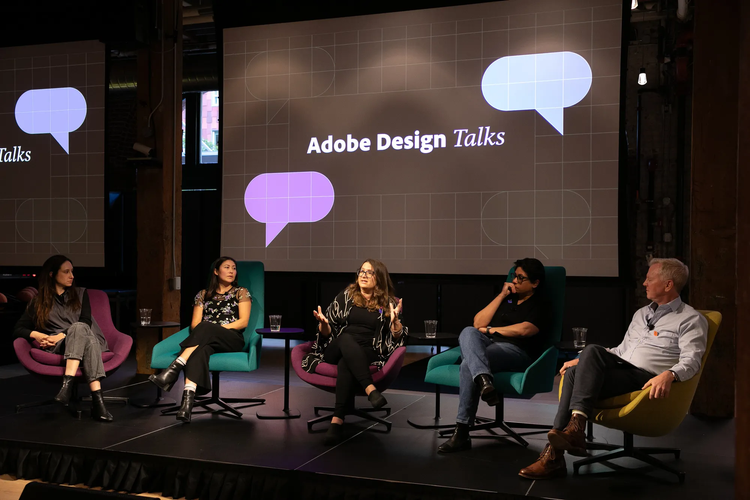
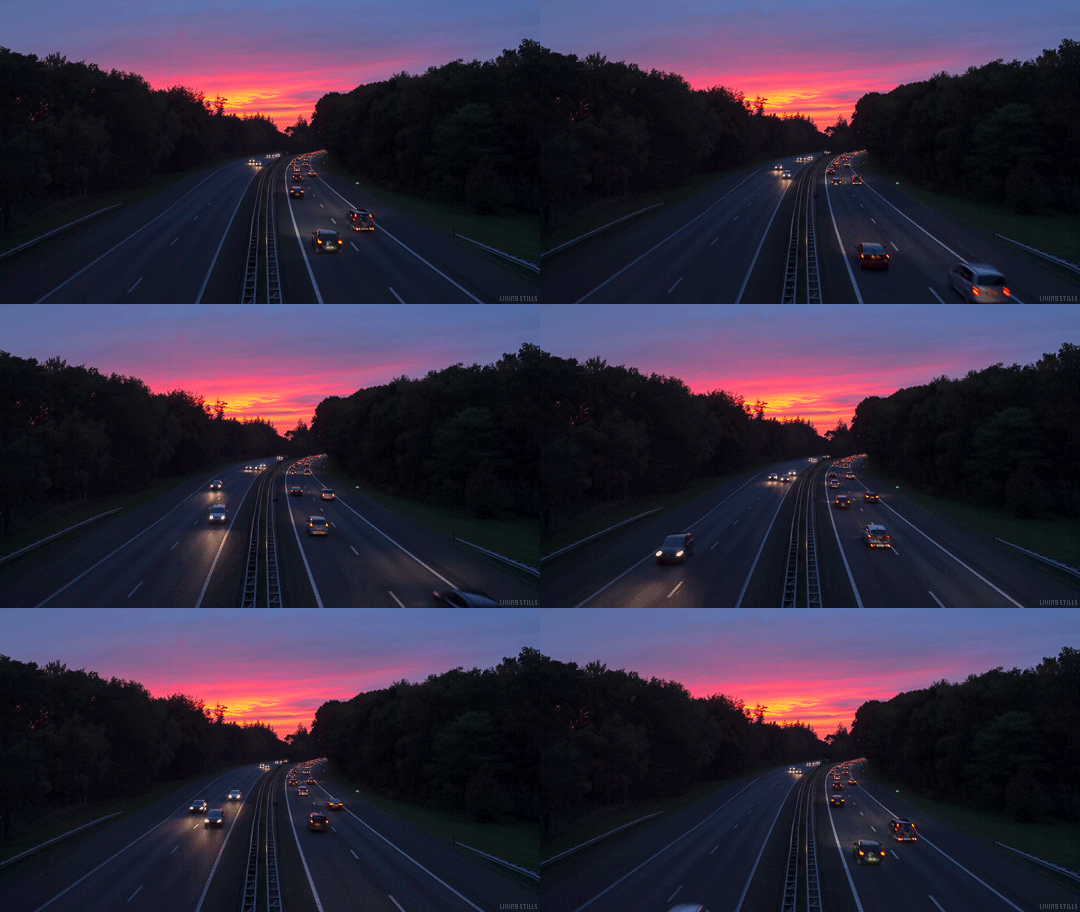
Images can also be placed within an “Image with Caption” block. These images can display an optional caption. An “Image with Caption” with or without a caption is the recommended way to place an Image inside a Layout. In an Image with Caption SharePoint block,
- The first row should contain the image.
- Optionally, a second image can be included as well by adding an additional column to the first row.
- The second row should contain the text for the caption, and is optional.
- At this time a secondary caption is not supported.
- The third row is optional and can contain additional alternative text.
- Again, secondary alt text can be added if a second image is included.
- The second row should remain as a placeholder when using alt text but no caption.
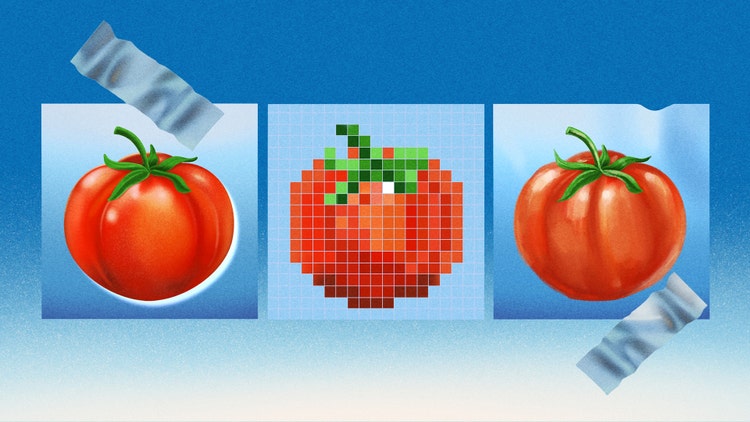


An Image-with-Caption block is also how we render images that are larger than the maximum width of the page. This is done by adding an additional row to the image block.
This optional fourth row can contain any text to cause an oversized image, but for clarity, it is recommended to use the text, “Full width.”
An image can be made full-width without a caption provided. To achieve this, leave the caption row empty. Explicitly: include the image in the first row, leave row two blank, provide optional alternative text in row three, and finally the “Full width” text in the fourth row.
Note that the full-width example below will not display the same as on an article (where the caption will be in proper alignment). A “full-width” image will display wider than the content area but it also has a max-width that prevents it from getting excessively large (and tall).

◼️ Job-List
Displays a list of jobs, under heading(s) for each discipline.
Each row of the content should contain a single discipline name. This allows the disciplines to be placed in a specific order.
Jobs are automatically listed under each discipline using query-index data pulled from the careers directory. To appear, jobs must be published and contain “Discipline” metadata with a value matching a discipline name included in a row.
If a discipline currently has no jobs, the heading will not be shown. In the case that there are no jobs under any heading, a short message will be displayed.
Example:
◼️ Job-Listing
This component is for displaying a single job list item. It’s typically not used on its own and is more of a sub-component used within Job-List.
- The first column is the job title, and the text should be linked to the job page.
- The second column is the department.
- The third column is the location.
◼️ Lede
This block is for displaying the opening paragraph(s) of an article. Lede text is larger and stands out visually from the rest of the text. The content of the block is intended for paragraph text only (not headings). Place the full paragraph text inside the first row of the block:
In an environment that thrives on the exchange of creative ideas, part of my job as an experience designer is to tell stories that create clarity while also eloquently engaging the audience.
Whether documenting a project, persuading a stakeholder, interviewing for a new job, or communicating with people, a designer’s ability to craft an effective, engaging, and memorable story is nothing short of a superpower.
◼️ Link-List
The first row of the Link-List block determines whether there is a link at the bottom of the block. Putting any text content in this row is optional.
- The first column should contain the link text.
- The second column should contain the URL.
- The third column can have optional alt text.
Each following row of the Link-List block represents a link in the list.
- The first column should contain the link text.
- The second column should contain the URL.
- The third column can have optional alt text.
An internal link in the list (links originating from https://adobe.design) will display with an arrow icon; otherwise, the external link icon will be displayed.
Additionally, any Link-List containing job listing links (links originating from https://adobe.design/careers/) will have a unique layout on large and above screens, so it is important to keep in mind that a Link-List should either contain all job listing links or none. There is some unique formatting to keep in mind for job listing links:
- The first line of the text content should contain the name of the position. This line will be bolded in the rendered block.
- The following two lines in the same table cell should contain department and then location information.
Staff Experience Designer
Machine Intelligence and Learning
Multiple locations, United States
Staff Designer (Behance)
Behance
New York
Design Engineer
Spectrum
Hamburg
◼️ Page-Header
The Page Header block is used on most pages, and styles featured header content and the page title. This block contains many optional configurations, but only a title is required.
- The first row is the main title of the page.
- This content will be placed in a heading level 1 (h1) element and is different from the page title included in the meta data block, which is applied to the page meta fields.
- The second row is optional and can contain an image or a video embed code.
- This decorative image will be placed to the right of the text content on large screens.
- To use a video instead of an image, include the embed code containing an iframe. The video will be responsively sized automatically to take up the available width. For example:
<iframe title="Adobe Video Publishing Cloud Player" width="640" height="360" src="https://video.tv.adobe.com/v/3477418/" frameborder="0" webkitallowfullscreen mozallowfullscreen allowfullscreen scrolling="no"></iframe> - If no image or video is desired, this row must be included but blank, unless the block does not need rows three through five.
- The third row is optional and is used for a description or subtitle.
- If no description is desired, this row must be included but blank, unless the block does not need rows four and five.
- The fourth row is an optional subtitle section and will most often contain author data.
- The first column should contain a person’s name.
- The second column should contain any related information, such as the person’s job title.
- If no subtitle, this row must be included but blank, unless the block does not need row five.
- The fifth row of the block is an optional call-to-action link. This row follows the pattern established by Button Group:
- The first column is the label of the button. The text in this column should link to the desired destination.
- The second column determines the button style and only accepts certain words as valid. There are six types of button styles:
- “primary” - This is also the default button style and will apply if the second column is left blank.
- “primary-outline”
- “accent”
- “static-black” - This button has a black outline regardless of whether the theme is light or dark.
- “static-white” - This button has a white outline regardless of whether the theme is light or dark.
- “ghost”
- The third column contains the alternative text for the link, which is recommended when there are several links on the page with the same label.
- For example, if there is more than one “View jobs” button on a page, one may have “View Experience Design jobs” as alternative text while another may have “View Content Strategy jobs.”
- The sixth row of the block is for adding optional classes to the page header.
- The first column is the list of classes you would like to add to parent page-header element. Multiple classes should be separated by a space.
Designing for generative AI experiences

The following Page header component does not include an author byline.
Designing for generative AI experiences
The following Page Header component contains only a title, description, and CTA.
Design your career at Adobe
The following Page Header component adds a modifier class to display a constrained version of the header.
Design your career at Adobe
The following Page header component uses a video embed instead of an image.
Designing for generative AI experiences
◼️ Plaintext
This block is only used to allow for nesting plaintext within a layout, and is not demonstrated on this page. See the Layouts page for an example.
◼️ Recent Ideas
This block is for displaying a list of articles (“ideas”). This list can include all articles, or be limited to a specific number and a specific tag.
The three rows of options are:
- The first row should include the tag(s) to pull from. Here are some examples and some special keywords:
- Single tag:
“Design Systems” - Multiple tags, comma separated:
“Design Systems, Design Strategy” - Pull from all tags:
“All” - Use Tag metadata on page:
“UseMetadataTags”- This special keyword is used primarily in the article pre-footer partial, to pull in related articles.
- Pull in specific articles by their slugs:
“ArticlesBySlug: some-post-title, some-other-post-title, another-post-title-example- If you want to dynamically pull in a specific set of articles that don’t share a tag, this special keyword can be used. The post slugs must be comma separated. Non-existent or renamed posts will not appear in the list.
- Single tag:
- The second row is the maximum number of articles to display, e.g. “8.”
- Keep this number low in most cases to keep page load time to a minimum.
- For unlimited, use the number “-1.”
- The third row includes layout options.
- The first column is the layout type and can include:
- “two-up” -- Two cards per column on large screens
- “four-up” -- Four cards per column on large screens
- A second column can optionally be included in the third row, with a value of “scrolling,” to provide the horizontal scrolling option at mobile viewports.
- At mobile screen sizes, the user can horizontally scroll through contained cards.
- At larger screen sizes, it behaves as the regular unmodified layout.
- It is not recommended to use less than 4 stories in a scrolling layout.
- The first column is the layout type and can include:
An example pulling a max of 4 stories from all tags, with a two-up layout:
An example pulling a max of 8 stories from the “Design Systems” tag, with a four-up layout:
An example just like the previous, but with the horizontal scrolling option for mobile viewports:
An example that pulls in specific articles by their slugs. This example also shows that it works whether or not slashes, line breaks, or spaces are included in the comma separated content:
/the-old-typography-is-new-again,/the-minds-and-hands-making-music-tech-feel-more-human/, this-post-does-not-exist-and-is-ignored
◼️ Search
This search block should not be used without the guidance of a developer. It is here on the page for testing purposes.
◼️ Responsive Split Layout
The Responsive Split Layout block was originally created for use on the Careers page. It renders a section with image and text content. The image displays above the text on small screens, and displays side by side on medium screens and above. When side by side, the image displays on the left by default, but this can be reversed.
- The first row contains the block’s image content.
- The first column should contain an image.
- The second column is optional and can include the alt text for the image.
- The second row contains the block’s text content. This can be comprised of any heading and any number of paragraphs.
- The third row is optional when you want to reverse which side the image and text appear on. This must be set to the word “reverse”. This will create the variant block that has text on the left on medium screens and above.

Reversed responsive split layout
We offer opportunities for mentorship, internal mobility, and career growth for managers and individual contributors alike, and transparency every step of the way.

Default responsive split layout
Each year, we step away from our day-to-day and gather for Adobe's annual celebration of design to recognize our team's impact and reconsider our collective approach to our work.
The Responsive Split Layout block also has a variant with a gradient background, originally designed for use on the Who We Are page. It renders each section with a full width gradient background and allows setting the gradient color for both light and dark mode.
To use this variant, include a fourth row with two columns:
- Third row must be present containing either “reverse” or other text for default (“default” is recommended for clarity).
- Fourth row with two columns must be present, containing the CSS color values (e.g. a hex color like “#E3F3FA”). Both light and dark mode colors must be included:
- First column: the gradient’s light mode color stop.
- Second column: the gradient’s dark mode color stop.
Gradient background - reversed responsive split layout
We offer opportunities for mentorship, internal mobility, and career growth for managers and individual contributors alike, and transparency every step of the way.
Gradient background - default responsive split layout
Each year, we step away from our day-to-day and gather for Adobe's annual celebration of design to recognize our team's impact and reconsider our collective approach to our work.
◼️ Section Header
The Section Header block is a commonly used block that provides a heading for a piece of content. It contains a heading element, along with an optional description and call-to-action. When creating the block table in Sharepoint:
- The first row is a single column containing the text of the heading. It is required.
- This text should use the proper heading level for the content. Most often this will be a Heading 2.
- The second row should have the description should be a single paragraph. This text content is optional, but if the heading should have no description, the row should exist and be left empty.
- The third row determines an optional button link element.
- The first column should contain a URL (this column needs to be filled with content if using the second and third column).
- The second column determines the label that will appear on the button link element.
- The third column is optional and describes the link’s alt text. Alt text is important to include when using many links on a page with the same text label but a different location, e.g., “view more.”
- Some layouts as designed place the call to action button in a different location on small and large screens. The fourth column is optional and is used for this purpose. Any text in this column will hide the button at small screen sizes, but for clarity, it is recommended to use the text, “Hide CTA on small screens.”
This Section Header contains all the optional items and uses a Heading 2 element (`h2`).
Designing Design Systems
This Section Header is only a heading, and it uses a Heading 3.
Designing Design Systems
This Section Header contains a description and no call-to-action.
Designing Design Systems
This Section Header contains a call-to-action and no description.
Designing Design Systems
This Section Header contains all the optional items has a hidden button at small screen sizes.
Designing Design Systems
◼️ Small Screen Call to Action
This block is designed to direct a user’s attention to a task, such as navigating to the careers page. This block is only visible on small screens, where some content is hidden low on the page.
- The first row should contain CTA copy. This text is only displayed on medium-sized screens.
- The second row should contain information around the CTA link. The first column is the URL the link should direct to, the second column is the desired link text, and the third column is for optional alternative, screen reader text.
Boilerplate Components
These boilerplate components are still usable, however, they were not styled as part of the redesign.
◼️ Accordion
An accordion is a stack of descriptive labels that can be toggled to display related full content.
Vocibus pericula temporibus id has, no quo omnium dolorem fuisset, ne quot brute gubergren per.
Cu errem fastidii maiestatis sed, mel at delectus erroribus. Mea porro postea nominavi at, sumo populo vix id. Vel at apeirian evertitur.
Ea officiis deserunt referrentur mel. Id usu tamquam lobortis evertitur, eum labores ancillae at.
Cibo lorem urbanitas ex sea, ea amet errem vim?
◼️ Form
A set of input controls grouped together that enables users to submit information.
◼️ Fragment
Fragments allow sharing pieces of content across multiple pages by loading and displaying the content of a single “page” of content. The value of the first row is the URL of the page where the content is pulled from. These fragment pages can contains multiple components.
Shared fragment content can be organized under the “/partials” folder in Sharepoint. Typically, these partials are not displayed on their own and should not be indexed by search engines. To do that, they have a “Robots” Metadata that includes "noindex”; see existing partials for an example of this Metadata.
The list of jobs found on several pages uses a fragment that displays “/partials/jobs-list”.
The example content below displays a fragment from this Sharepoint page.
◼️ Modal
Links to a `/modals/ `path are automatically transformed into a modal.
Search Modal
Text Modal
◼️ Table
A simple styled data table.
◼️ Tabs
Segment information into multiple labeled (or “tabbed”) panels.
Vocibus pericula temporibus id has, no quo omnium dolorem fuisset, ne quot brute gubergren per.
Cu errem fastidii maiestatis sed, mel at delectus erroribus. Mea porro postea nominavi at, sumo populo vix id. Vel at apeirian evertitur.